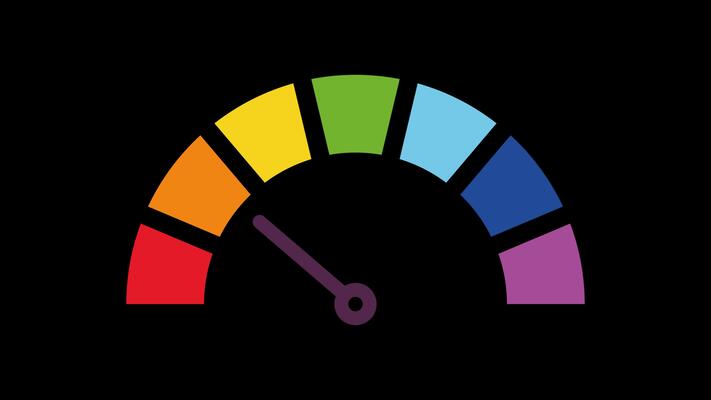
1. The Architecture of Data: Creating the Gauge Face
A professional speedometer requires a dual-layer data structure. The first layer is the 'Gauge Face,' which we construct using a Doughnut Chart to represent performance zones.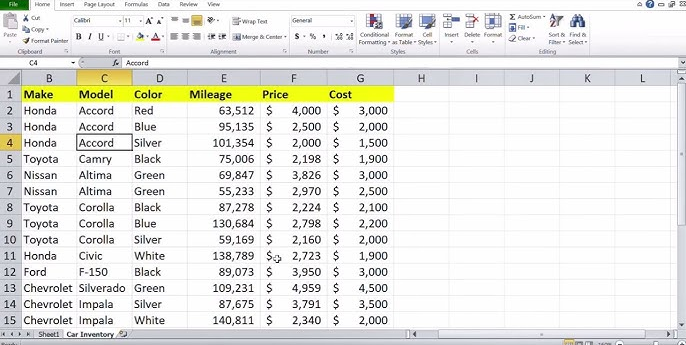
* Zone Configuration: Define your ranges (e.g., 25/50/25). * The 180-Degree Rule: Add a 'Base' value equal to the sum of all zones (e.g., 100) to ensure the chart renders as a semi-circle once the base is set to 'No Fill' and rotated to 270 degrees.
2. The Needle Logic: Pie Chart Integration
The 'Needle' is the second layer, built using a Pie Chart overlaid on the secondary axis.* Needle Width: Set a static value (e.g., 1 or 2) for the needle thickness. * Dynamic Formula: Use a buffer formula
=200 - Current_Value - Needle_Width to ensure the needle remains perfectly synchronized with the underlying gauge zones as the input data fluctuates.3. Synchronizing with Real-Time Telemetry
To transform a static graphic into a functional dashboard, the needle must be linked to a live data source. If you are monitoring vehicle performance or app telemetry, link the 'Current Value' cell to your external data feed.By adding a Dynamic Text Box linked to the same cell, you provide the user with both the spatial context of the needle and the absolute precision of a digital readout—a fusion typical of modern Human-Machine Interface (HMI) design.
4. Advanced Customization: The 'C-Suite' Finish
To achieve a professional automotive aesthetic, avoid Excel's default neon palette. Use muted tones and a subtle gradient fill on the Doughnut segments to simulate a 3D gauge housing. For developers tracking high-velocity data, implementing a Low-Pass Filter formula in the input cell can prevent the needle from jittering, providing the 'damped' feel of a premium analog instrument.